Adding notes and attachments
Notes
The budget tool allows for multiple notes to be added to each budget line. As a note is added, the system will include the date and the name of the person that created the note. Notes cannot be edited, but they can be deleted. Any changes including the addition and deletion of notes will be recorded in the change history.
Note A maximum of 10 notes can be added for one budget line. You will need to delete an existing note if you want to add more.
Warning A deleted note cannot be undeleted (i.e. reverted back).
Attachments
The budget tool allows for three attachments to be added to each budget line. You will receive a warning if you attempt to add a fourth attachment. You can delete unwanted attachments. Any changes including the addition and deletion of attachments will be recorded in the change history.
Tip
- Valid file types that can be uploaded are PDF, Word Documents (docx/doc), Images (png/jpeg/gif/jpeg/bmp) Spreadsheets (xls/xlsx/csv), PowerPoint Presentations (ppt/pptx) and Audio/Video files (avi/m4/wmv/flv/mpeg/quicktime/h.264/divx/vdo/mov/mp3/wav/wma/mpeg).
- A maximum of three files is allowed per budget line.
- A filesize limit of 10MB exists per budget line.
Add a note
From the budget screen:
-
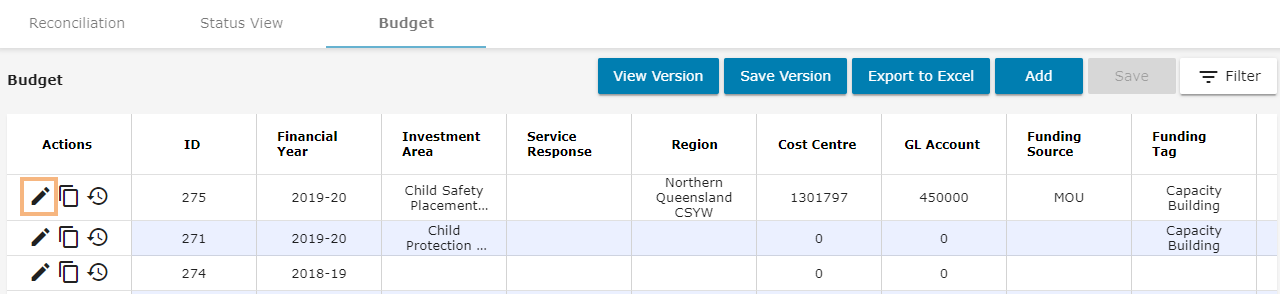
Click the pencil icon next to the budget line to which you wish to add an attachment or note.
-
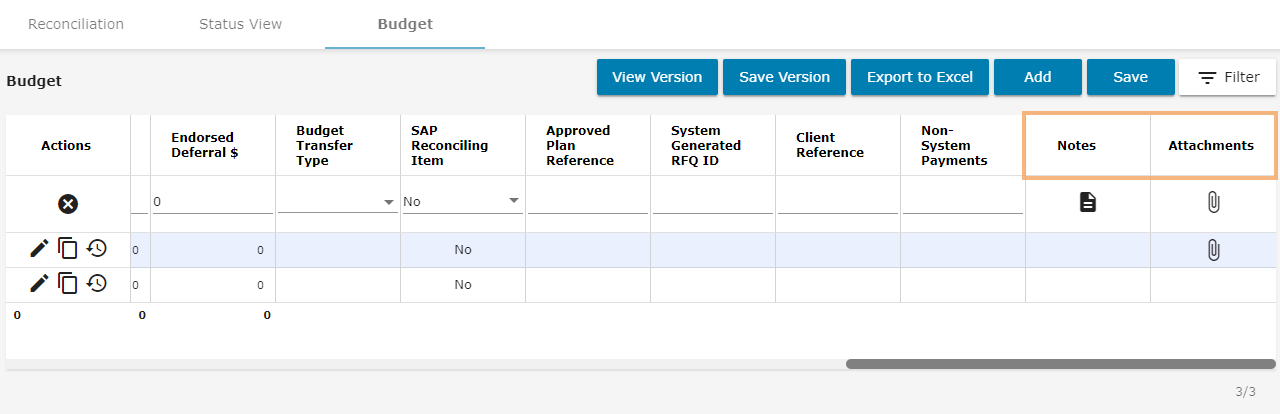
Scroll across to the Notes and Attachments fields.
-
Click the Notes icon to add a note to the budget line.
-
Click Add Note.
-
Enter the details of the note and click Confirm.
-
Click Save to save the budget line.
Tip To view notes, click on the Note icon.
Add an attachment
From the budget screen:
-
Click the pencil icon next to the budget line to which you wish to add an attachment.
-
Scroll across to the Notes and Attachment fields.
-
Click the Attachments icon to add an attachment.
-
Click Browse.
-
Select the attachment from your network drive, desktop location or iDOCS location.
-
Click Upload.
Your file is uploaded and added as an attachment to the budget line.
Tip To view attachments, click on the Attachments icon.